- Difficulty
- Beginner
- Build time
- 45-70 min
- Estimated cost
- $0
- Age range
- 10-16
- Workspace
- A computer or tablet workspace
The finish line
What you will build
The project records five valid trials in milliseconds, flags early key presses, and displays average, best, and range.
Learning goals
- Identify how spacebar press after a visual cue produces reaction-time statistics.
- Construct and explain a human event-to-measured software interval system.
- Measure how cue mode changes performance.
- Diagnose losses caused by screen refresh and keyboard latency.
Before you build
Materials, tools, and safety
Reuse-material cost: $0-$3 with reused materials. Supervision: Adult help recommended for sharp or heated tools.
Tools
- Computer or tablet
- Web browser or offline editor
- Notebook for test results
Low-cost swaps
- Use the platform's offline editor when internet access is limited.
- Storyboard the logic with cards and arrows before opening the coding tool.
- Use a large external keyboard switch or touch input mapped to space.
Project-specific safety
- Use a teacher, parent, or guardian account where the platform requires an adult.
- Do not publish student names, locations, or personal contact details inside a project.
- Keep screen brightness comfortable, take breaks, and treat results as a game rather than a judgment of a person.
Orient the build
Treat the screen origin and stage edges as fixed references. The control that creates spacebar press after a visual cue is the input side; the sprite, score, or display that produces reaction-time statistics is the output side.
Build it
Step-by-step instructions
Step 1
Plan the states
Define ready, waiting, cue, response, false start, and summary.
Draw a state flow.
Step 2
Build the cue
Create a large high-contrast circle that starts hidden.
Add plain text instructions outside the sprite.
Step 3
Reset results
Clear the list, set trial to 0, and set best to a high value.
Require the spacebar to be released.
Builder checkpoint: After reset results, the first subassembly should stay aligned when handled gently.
Step 4
Create random wait
Choose 2-5 seconds and start waiting.
Check for an early space press during the wait.
Watch for: If this stage binds or drifts, inspect duplicate key state before adding more parts.
Step 5
Handle false starts
Show a false-start message and repeat the same trial number.
Wait for full key release.
Step 6
Measure response
Show cue, reset timer, wait for space, and store timer × 1000.
Hide cue immediately.
Builder checkpoint: After measure response, operate the build slowly and confirm that reaction-time statistics begins without binding.
Step 7
Repeat five trials
Add each valid result to the list and update best.
Give a short rest.
Step 8
Calculate summary
Sum list values, divide by five, and find maximum minus minimum.
Display units as milliseconds.
Builder checkpoint: At the final checkpoint, The project records five valid trials in milliseconds, flags early key presses, and displays average, best, and range.
See the engineering
Why it works
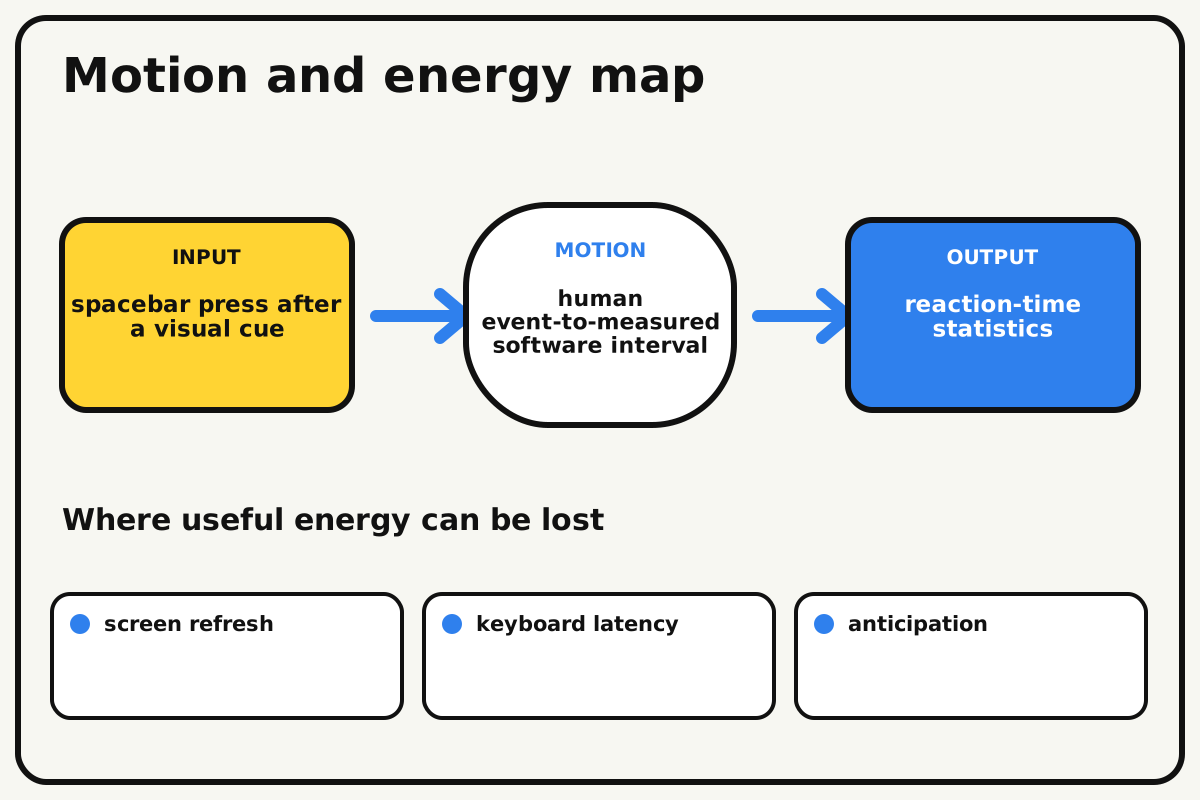
- Input
- spacebar press after a visual cue
- Output
- reaction-time statistics
- Motion
- human event-to-measured software interval
- Energy losses
- screen refresh, keyboard latency, anticipation, duplicate key state
Why this works
Randomized event timing
The program resets a timer when the cue appears, then stores the value at the next new key press. A random pre-cue delay makes anticipation less useful.
Look for: Compare individual trials and identify whether one unusually slow or fast value changes the average.
Where the energy goes
Efficiency and losses
The ideal model leaves out screen refresh, keyboard latency, anticipation, duplicate key state. These effects turn some input energy into heat, sound, vibration, or unwanted motion, so measured performance will be lower than an ideal calculation.
Look for: Run the build slowly and locate the first place where screen refresh becomes visible or audible.
Math bite
Find reaction-time range
Formula: range = slowest time - fastest time
- Slowest = 310 ms
- Fastest = 240 ms
Substitute: range = 310 - 240 = 70 ms
Result: The five-trial spread is 70 milliseconds.
Range shows consistency but depends on extreme values.
Device latency affects every measurement.reaction_game_scripts.txt
A complete Scratch-style procedure for five valid trials with false-start handling and summary calculation.
when green flag clicked
delete all of [results]
set [trial] to 0
set [best] to 99999
hide [Cue]
repeat until <(trial) = 5>
  wait until <not <key [space] pressed?>>
  say [Ready...] for 0.5 seconds
  set [waitTime] to (pick random 20 to 50) / 10
  reset timer
  set [falseStart] to 0
  repeat until <<(timer) > (waitTime)> or <key [space] pressed?>>
  end
  if <key [space] pressed?> then
    set [falseStart] to 1
    say [False start — release and try again] for 1 seconds
  else
    show [Cue]
    reset timer
    wait until <key [space] pressed?>
    set [reactionMs] to (round ((timer) * 1000))
    add (reactionMs) to [results]
    if <(reactionMs) < (best)> then set [best] to (reactionMs)
    change [trial] by 1
    hide [Cue]
    wait until <not <key [space] pressed?>>
    wait 0.5 seconds
  end
end
set [total] to 0
set [index] to 1
repeat (length of [results])
  change [total] by (item (index) of [results])
  change [index] by 1
end
set [average] to (total) / (length of [results])
say (join [Average ms: ] (average)) for 3 seconds
Make it behave
Test, troubleshoot, and tune
Controlled test
Start here: Hold space during the random wait to confirm false-start detection.
Success looks like: Five valid trials appear in the list and summary values match a hand calculation.
Measure: Times, early presses, average, best, range, and restart state.
Change: cue mode
Keep constant: same user, device, key, wait range, posture, and trial count
- visual cue
- audio cue
- visual cue after a short rest
| Symptom | Likely cause | Confirm it | Fix |
|---|---|---|---|
| Time is always zero | Timer resets after the response | Inspect block order | Reset exactly when cue appears |
| Held key scores instantly | Code waits for key state, not a new press | Hold space before cue | Require release before each trial |
| False starts count as trials | Trial increments too early | Trigger a false start on trial one | Increment only after valid result |
| Average is wrong | List contains text or old values | Show list after restart | Delete all before trials and sum numeric items |
Choose your tradeoff
Protect fairness before adding visuals. Longer random waits reduce anticipation but can frustrate players, while more trials improve the summary but add fatigue.
Keep experimenting
Try another version
Three-trial version
Display only each result and average.
Consistency score
Use range or median.
Choice reaction
Show left or right cues and score speed plus correctness.
Build together
Classroom and access options
Classroom version
Teams can compare cue mode while keeping same user, device, key, wait range, posture, and trial count. Assign builder, tester, recorder, and explainer roles; have each team predict the result before collecting three trials.
Access adaptations
- Use keyboard-accessible controls and high-contrast sprites or interface elements.
- Pair a navigator who reads instructions with a driver who enters blocks or code.
- Offer visual and audio cue modes, larger cue graphics, and alternative input devices; compare results only within the same mode.
Reflect on the design
- How did cue mode change the measured result?
- Where did screen refresh affect the build most strongly?
- What evidence shows that randomized event timing explains the motion?
- Which change would improve reaction-time statistics without creating a new problem?
Glossary
- Randomized event timing
- The program resets a timer when the cue appears, then stores the value at the next new key press.
- Input
- The action or energy supplied to a system; here it is spacebar press after a visual cue.
- Output
- The useful response produced by a system; here it is reaction-time statistics.
- Efficiency
- The fraction of input energy that becomes useful output instead of friction, sound, heat, or unwanted motion.
Build your dreams
One build can start the next.
Share what you learned, change one variable, and help another builder understand what worked.
Explore more guidesSources and build notes
A platform-appropriate educational coding project with original logic and instruction.
- Programming project basis: A platform-appropriate educational project with complete logic, setup instructions, debugging, and original examples.
Written and edited by BrickLabClips. Published 2026-07-22; updated 2026-07-22.
Next builds
Related guides
LED Reaction Timer
Measure response time to a randomly delayed LED cue while rejecting early button presses.
Scratch Arcade Game
Build a keyboard-controlled collecting game with falling objects, lives, score, speed progression, and a clear restart loop.
Robotics/electronicsTraffic Light Controller
Program red, yellow, and green LEDs as a timed state machine with a pedestrian request button.